Access - both in the supervisor and agent interface - to Outbound --> HSM Shipment Summary Module.
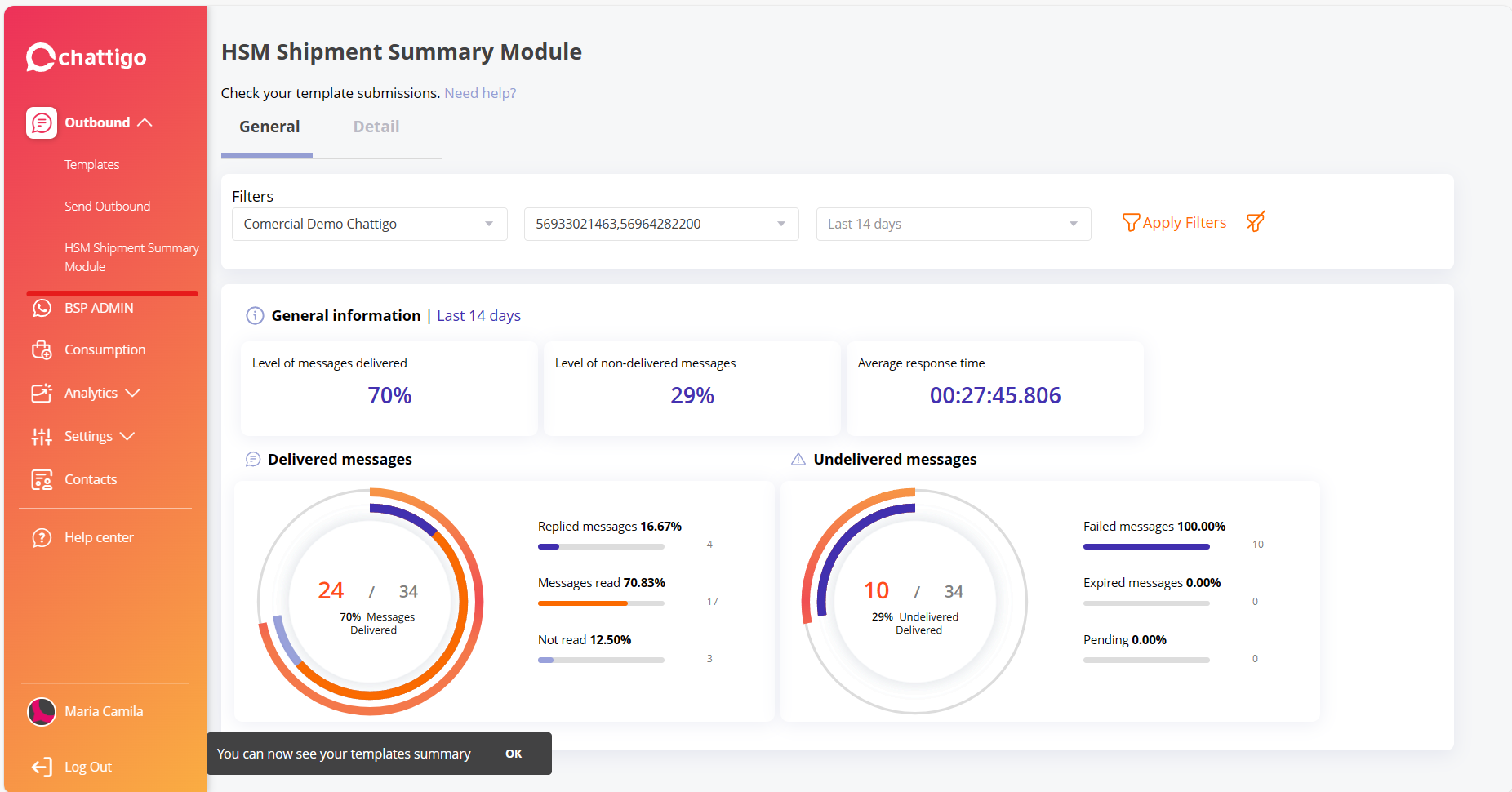
There you can set the desired filters for the campaign, the phone number from which the shipment was made, the period to analyze (last 7, 14, or 30 days), and then click on "Apply Filters".

Then you can access this information from the 'General' tab:
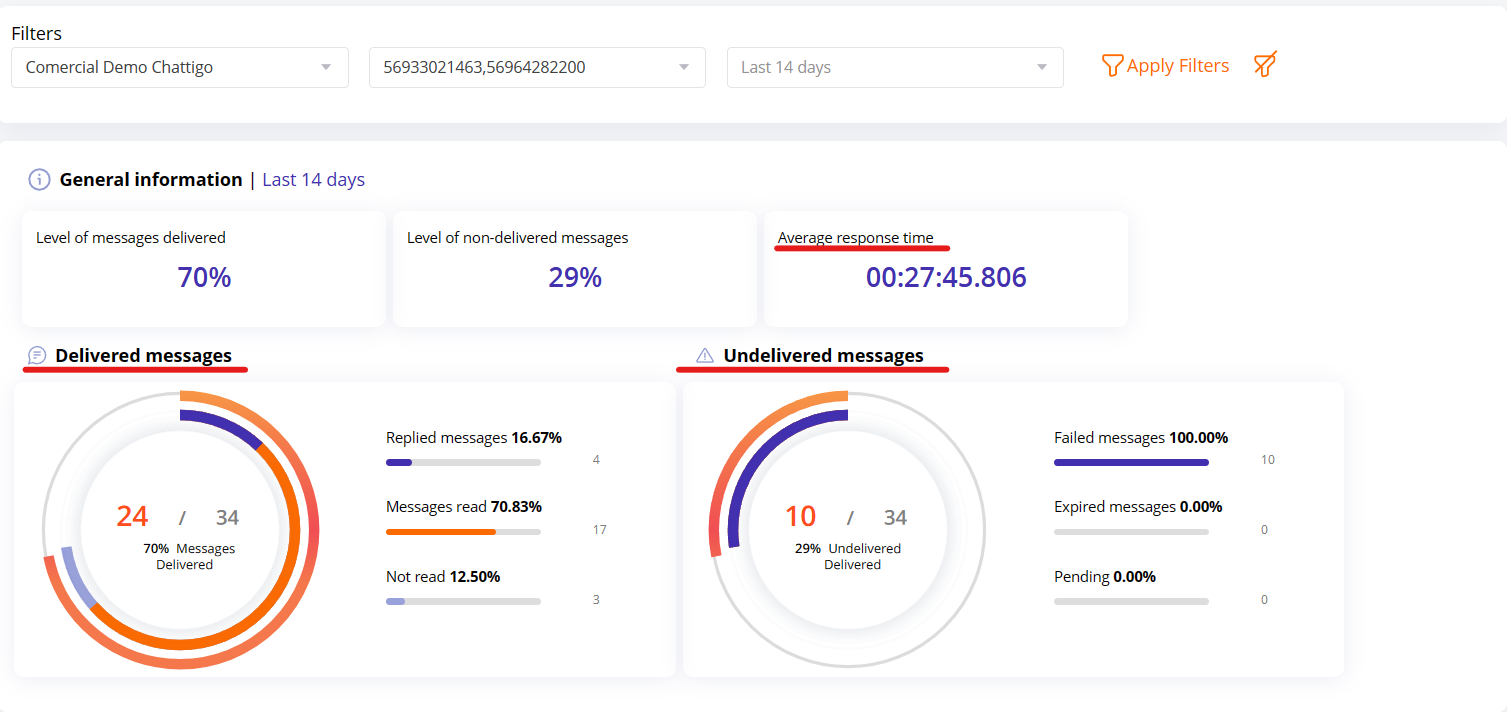
Then you can access this information from the 'General' tab: This data reveals the effectiveness level of the messages that were read and responded to:
1- Level of delivered messages
2- Level of undelivered messages
3- Average response time
From the Delivered Messages:
4- Total number and percentage of delivered messages out of the total sent.
5- Number and % of responses: that is, those that were delivered and received a response from the recipient within 30 days of their delivery.
From the Undelivered Messages:
6- Total number and percentage of undelivered messages out of the total sent.
7- Number and % of failed messages: those that did not reach their destination because they failed at some stage of the sending process. (This may be because the destination number is incorrect, there is insufficient balance, or due to operational errors from Meta).
In the 'Detail' tab, on the other hand, you can see the data by template:

1- Name of the template used.
2- Effectiveness percentage.
3- Sending date.
4- Sending time.
5- Channel (number from which the message was sent).
6- Number of recipients of the shipment.
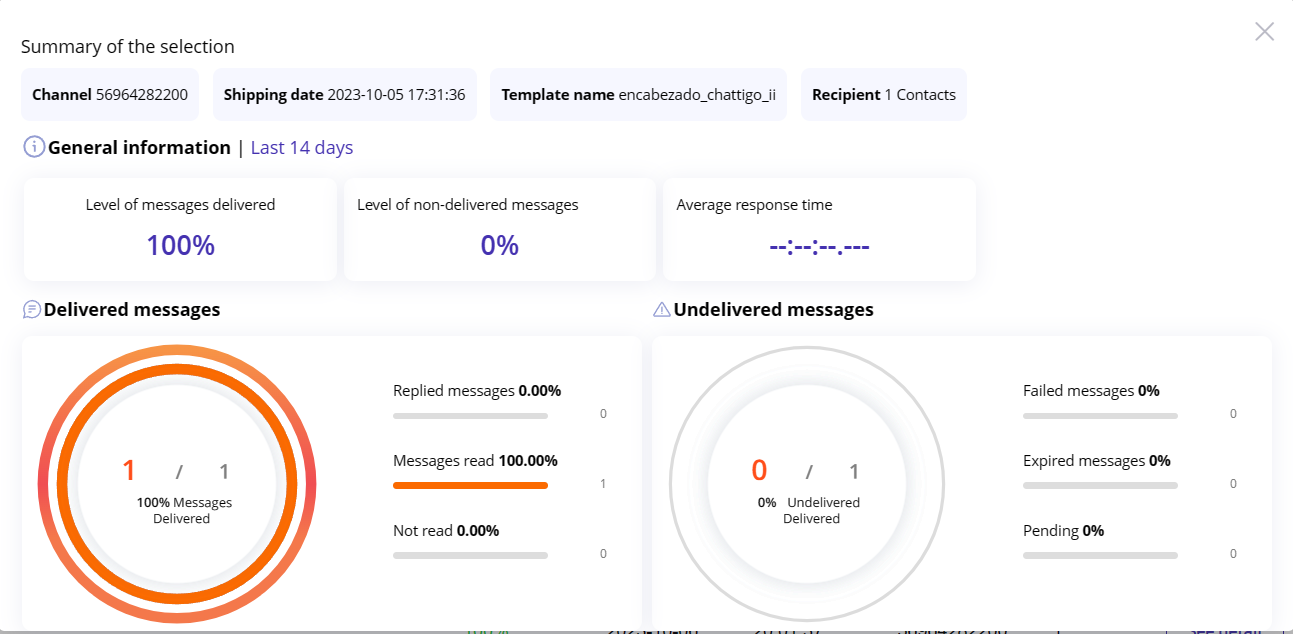
7- From 'View Detail', we will access the same charts as in the general tab but specific to the shipment we have selected:
Enjoy the simplest and fastest way to see the effectiveness of your WhatsApp shipments.