Available Channels
- WebChat
- Messenger
The step-by-step to create an interactive button panel in the Bot is as follows:
-
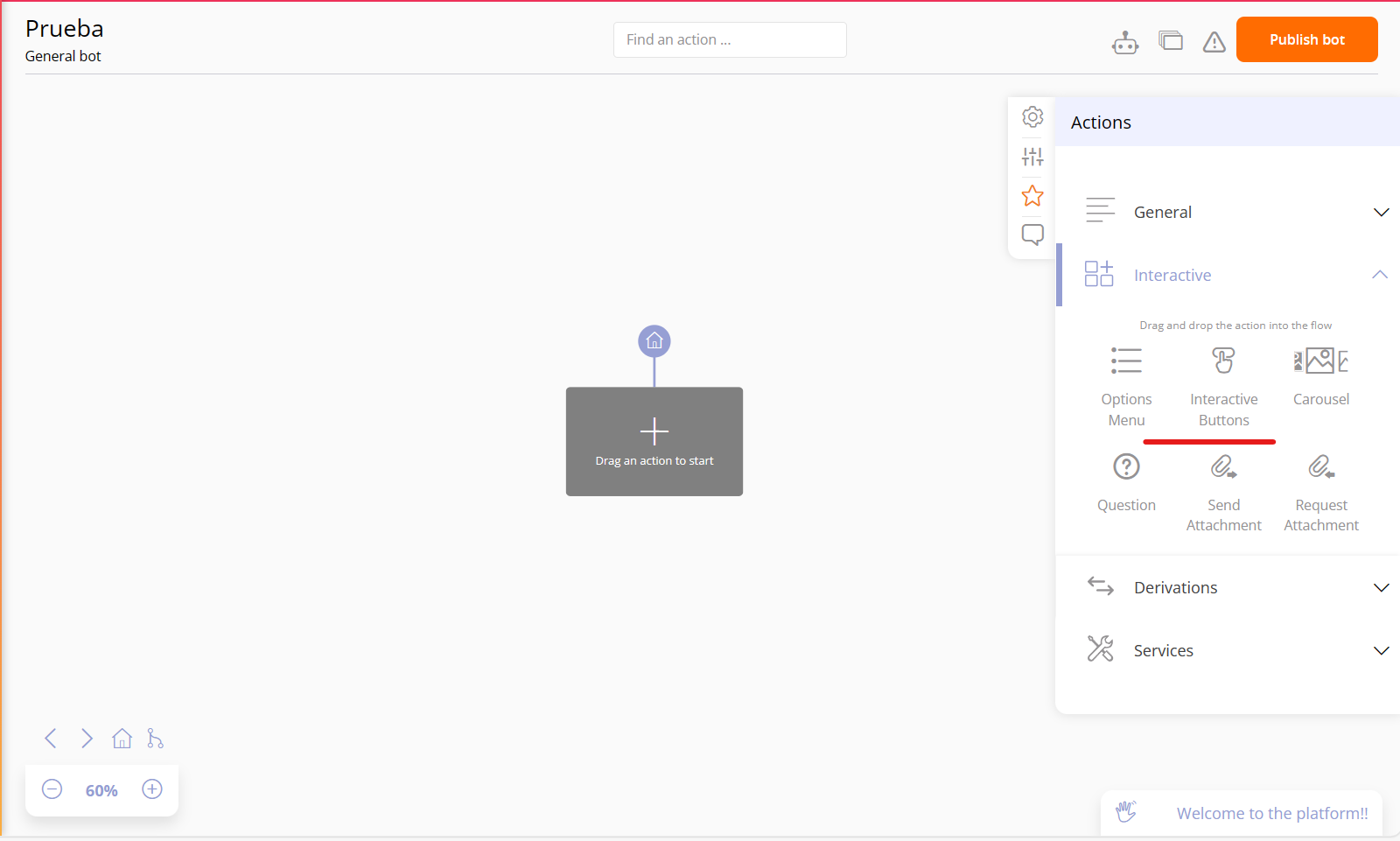
Enter the Bot to the 'Interactive Button Panel' action.
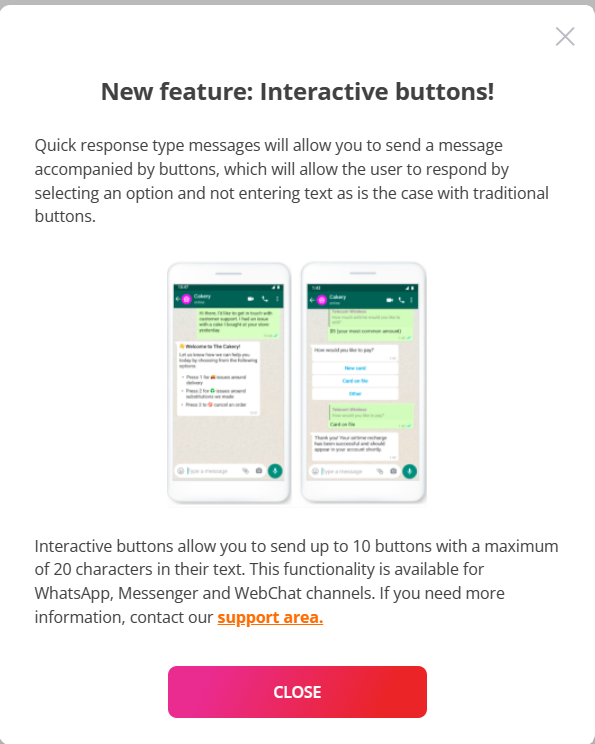
By clicking on the question mark:

You can learn about what interactive button-type messages are and how they work:
Create Interactive Buttons.
Message text: The text accompanying the buttons has a maximum length of 1,024 characters. The message text can be enriched and emojis can be added.
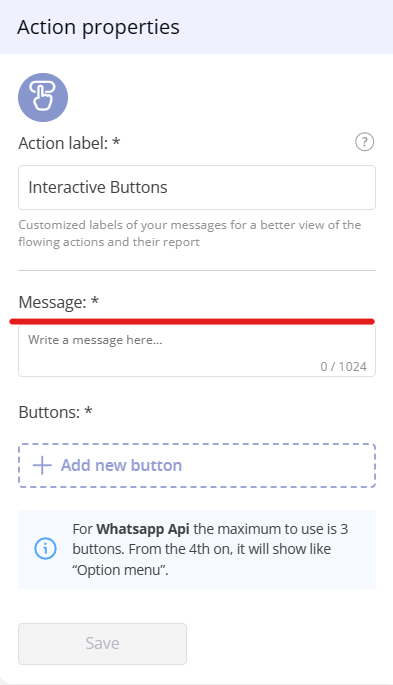
Add buttons to the message:
- The button text can have a maximum of 20 characters.
- You cannot enter emojis or enriched text on the button. For WhatsApp Api, the maximum to use is 3 buttons.
- From the 4th button onwards, it will appear as an 'options menu'.
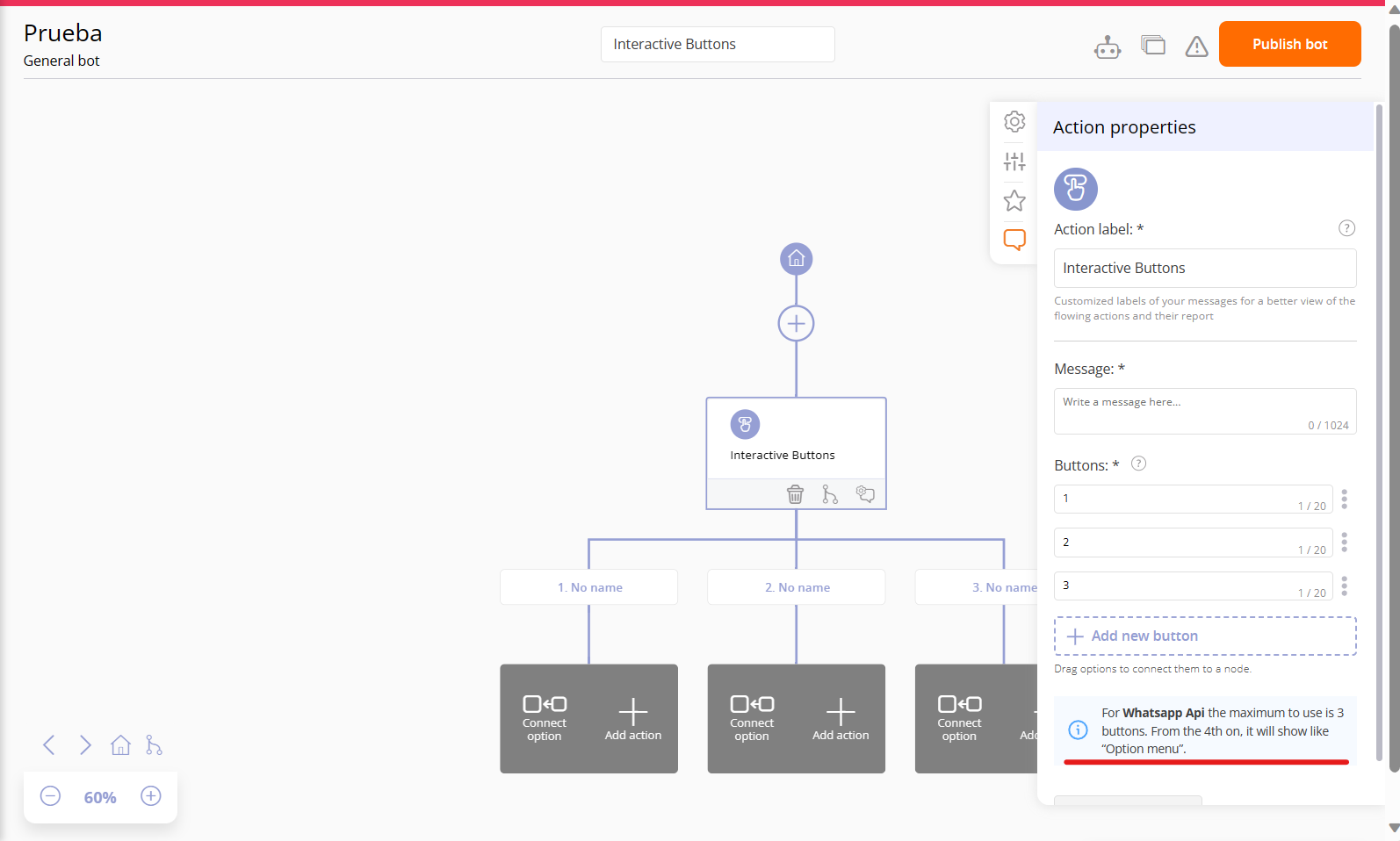
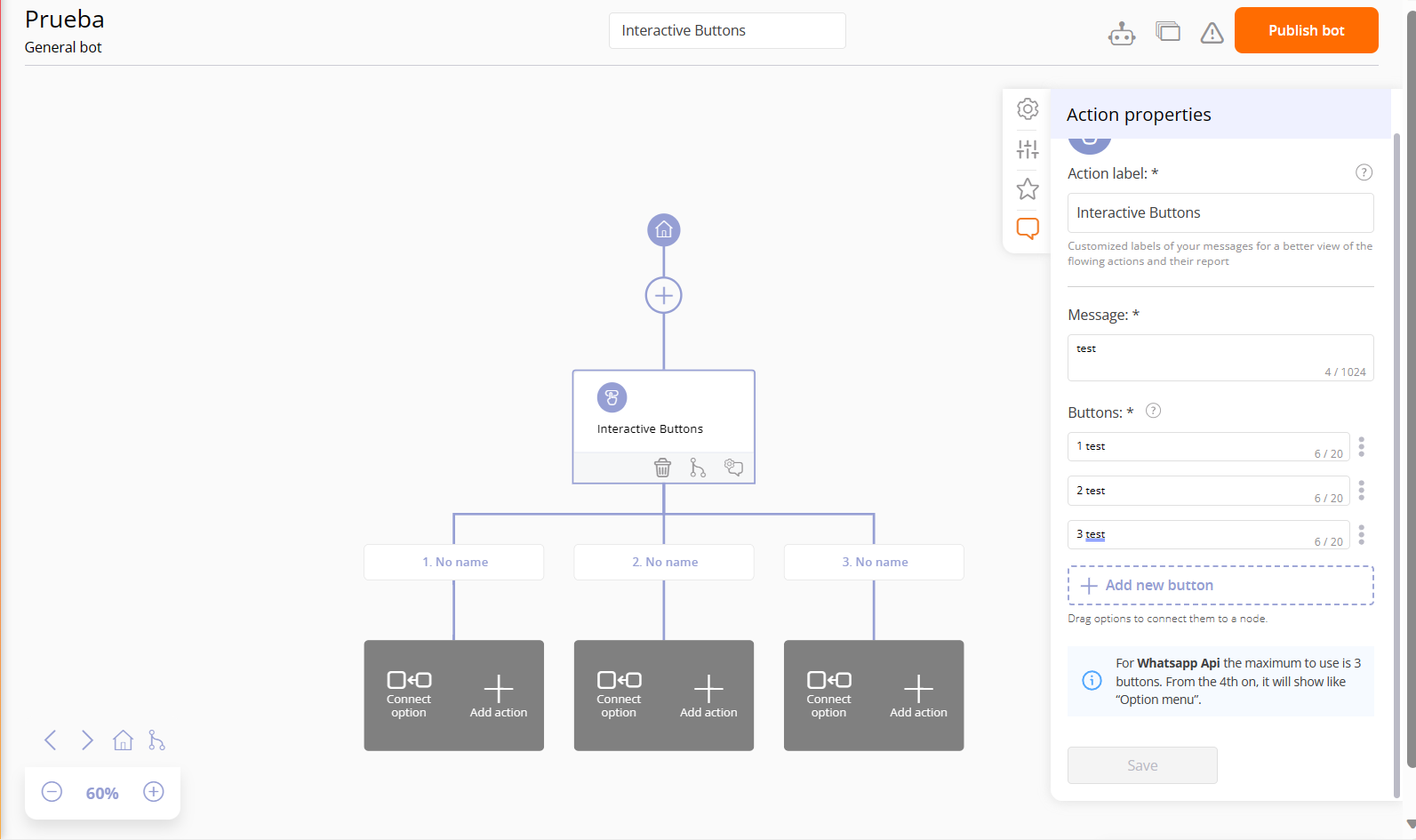
Interactive button panel created
Once the message text and button text have been added, you will have created the interactive button panel, and you will be able to add new actions to each of the buttons: