
-
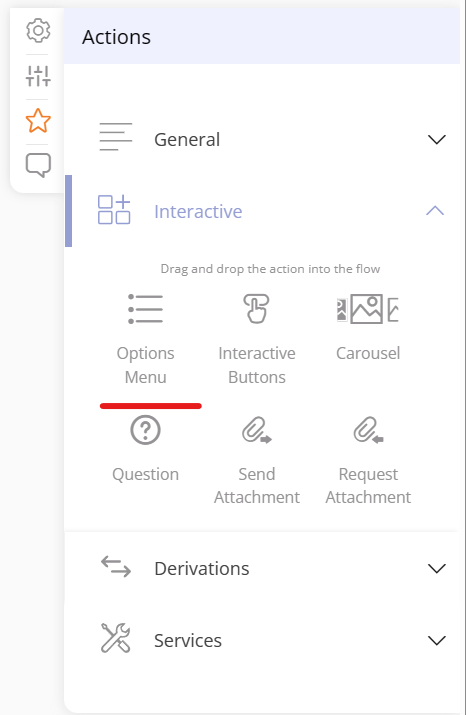
Enter the Bot profile to the 'Options Menu' action.
In this action, you will find the 'options menu' and you will be able to activate the 'interactive options menu':
2. Activate Interactive Lists option
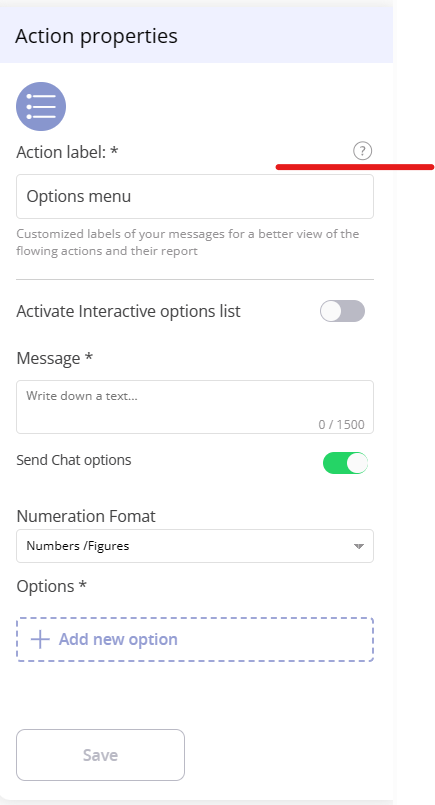
- To activate the interactive list, you must turn on the switch.
- (If you don't have an active WhatsApp channel, even if you turn on the switch - without having a WhatsApp channel - the interactive list will be displayed as a list of options, meaning, only text will be displayed, and options cannot be selected.
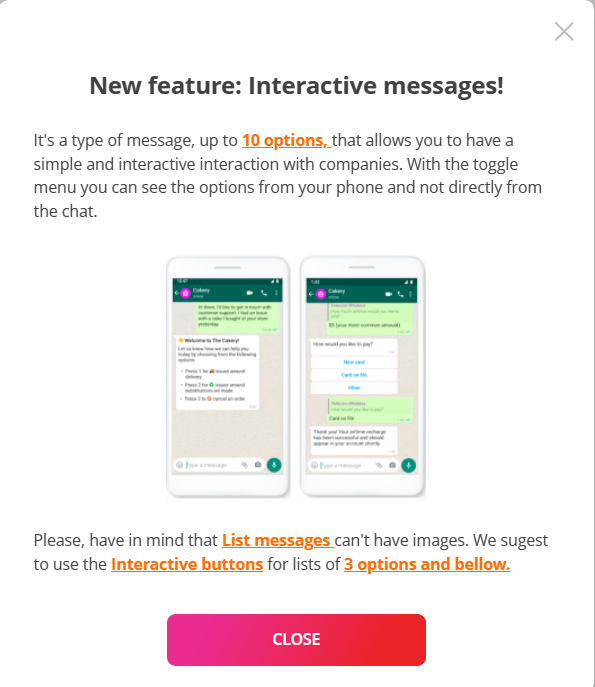
- By clicking on the question mark, you can receive more information about how the interactive lists work and how they are displayed:
3. Add options to the interactive list
Once the switch is activated, you can start adding the options you want to appear on the interactive list:
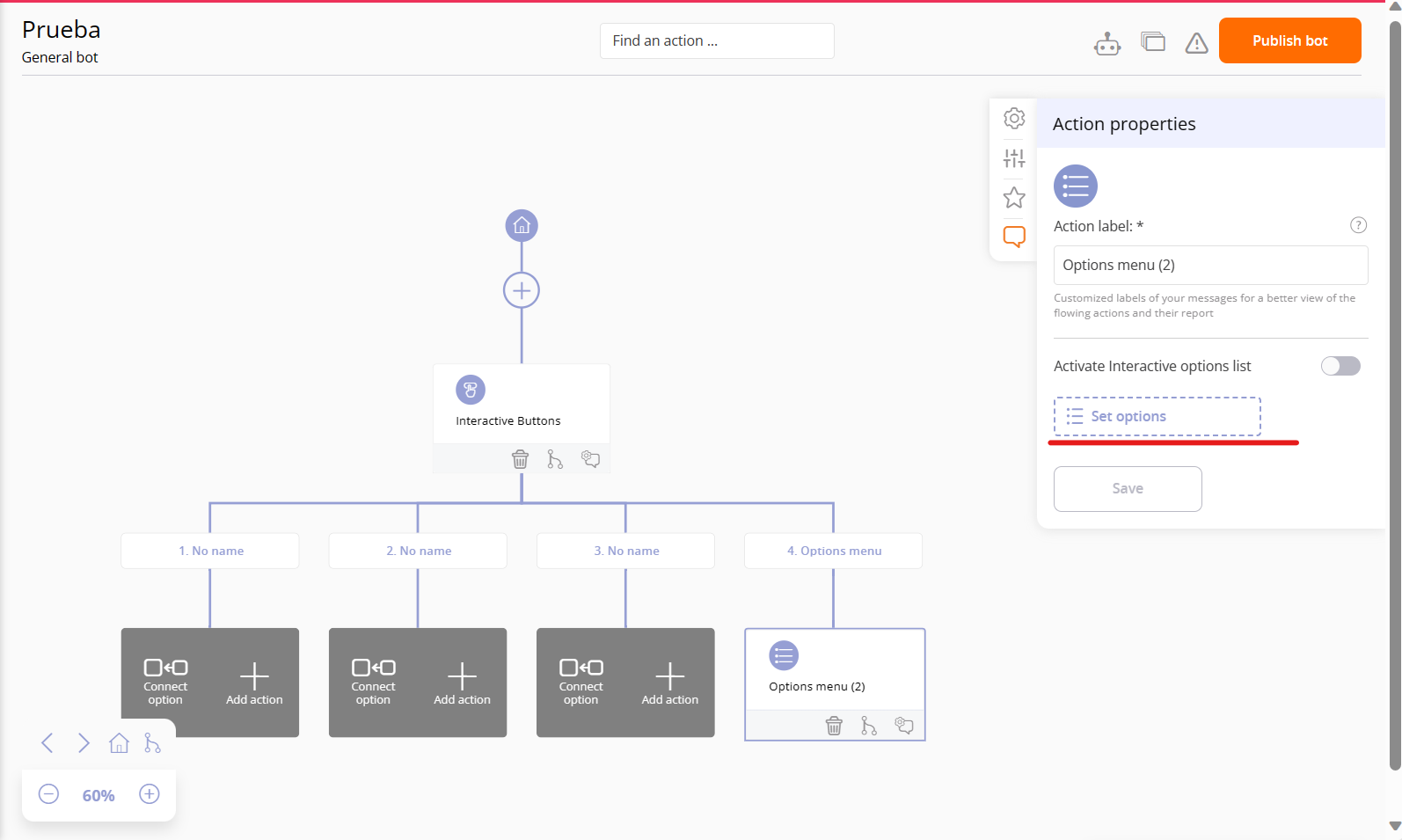
- You can only add up to 10 options.
- You cannot add emojis to the options.
- You cannot add enriched text to the options.
- You can add text to the options with a maximum of 24 characters.
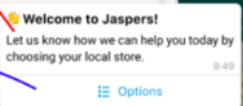
- Message: this corresponds to the message that will accompany the list of options.
- List title: this corresponds to the name the button and/or list will have.

- You can only add 10 options to the interactive list. Once you add the 10th option, the '+ Add option' and 'Accept' buttons will appear grayed out with no possibility to add more options.
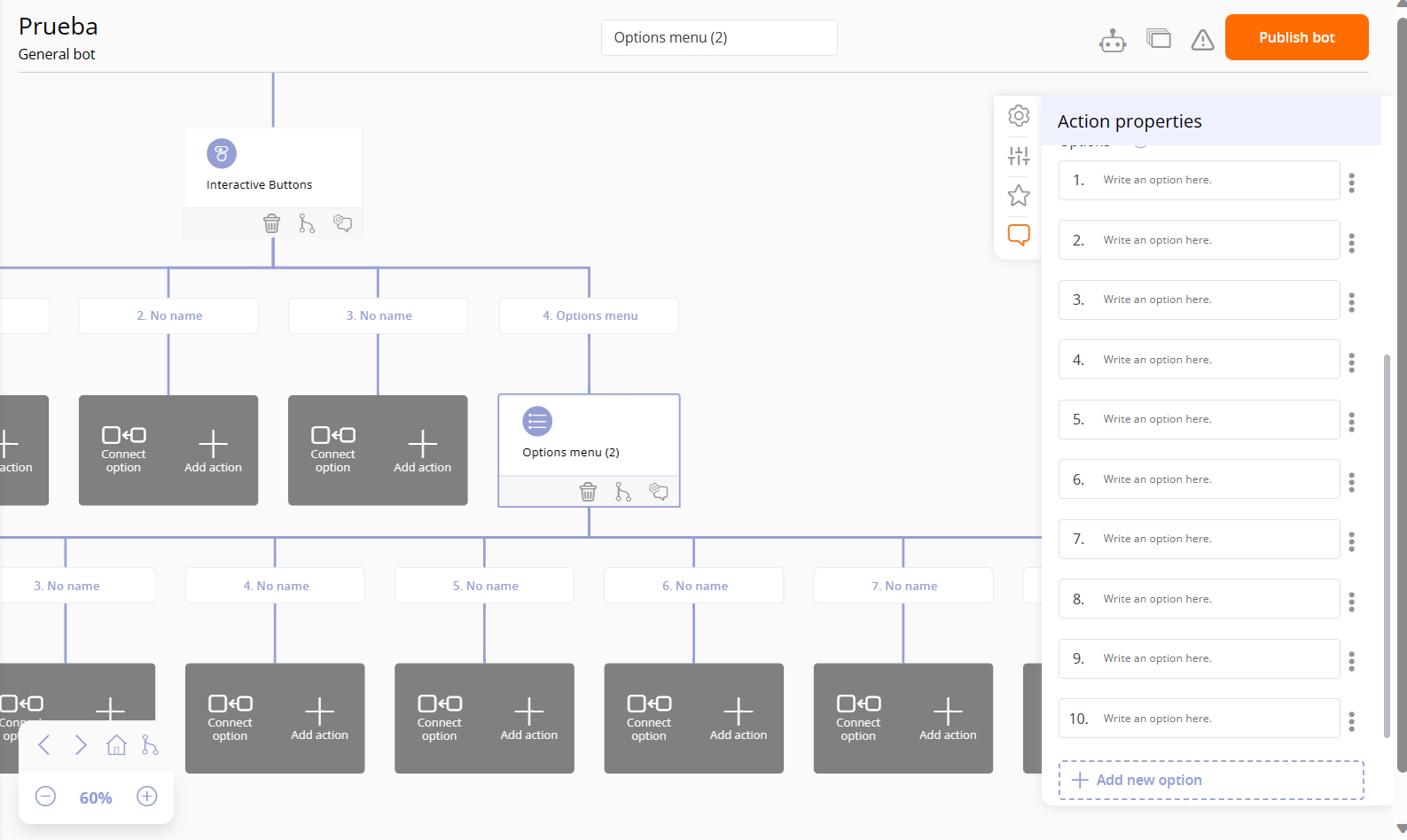
Once you add your options, you will have set up your interactive options list.
- You can add fewer than 10 options, but Meta/WhatsApp's documentation recommends:
- For fewer than 4 options, it's advisable to use the interactive button panel.
- For 4 options and above, using the interactive lists is recommended.
- Once you've set up all the options, a summary input will appear indicating how many options you configured, allowing you to press the 'edit' button to go back and modify the set options."
Considerations for interactive options lists:
1.- It's only available for the BSP Chattigo provider.
2.- A maximum of 10 options can be entered.
3.- The text for an option allows up to 24 characters.
4.- Emojis and enriched text cannot be added to the option texts.
5.- Users without a WhatsApp channel will send their list messages in the traditional way, meaning they will only see text (and not clickable options).