
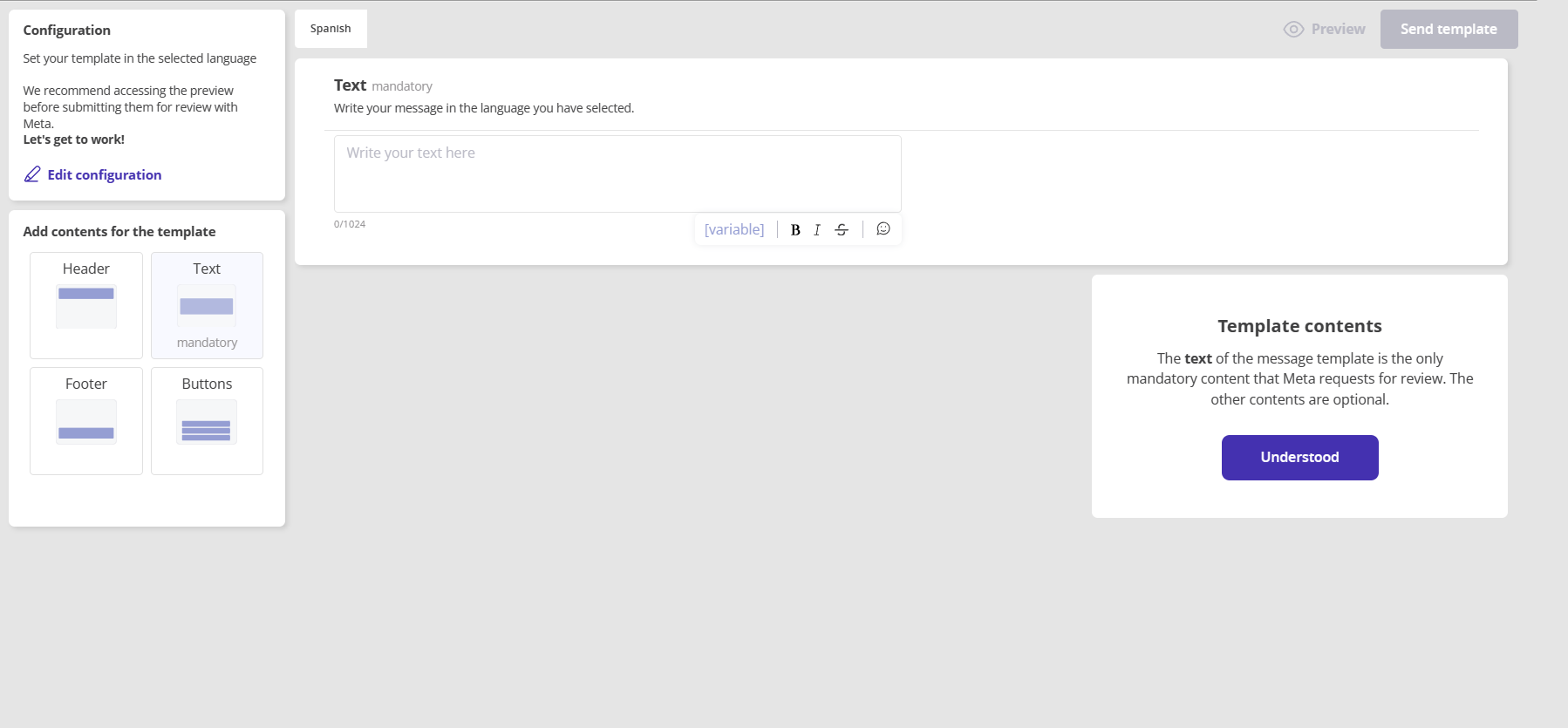
- Supervisors can now: create text templates, quick message types, with multimedia headers and footers, assign them to the campaigns they want, and track the approval status.
- Once the template is approved, they can activate it and send it from the outbound module.
How to create a template?
When selecting 'create template', a modal will open to configure the basic information of your template.
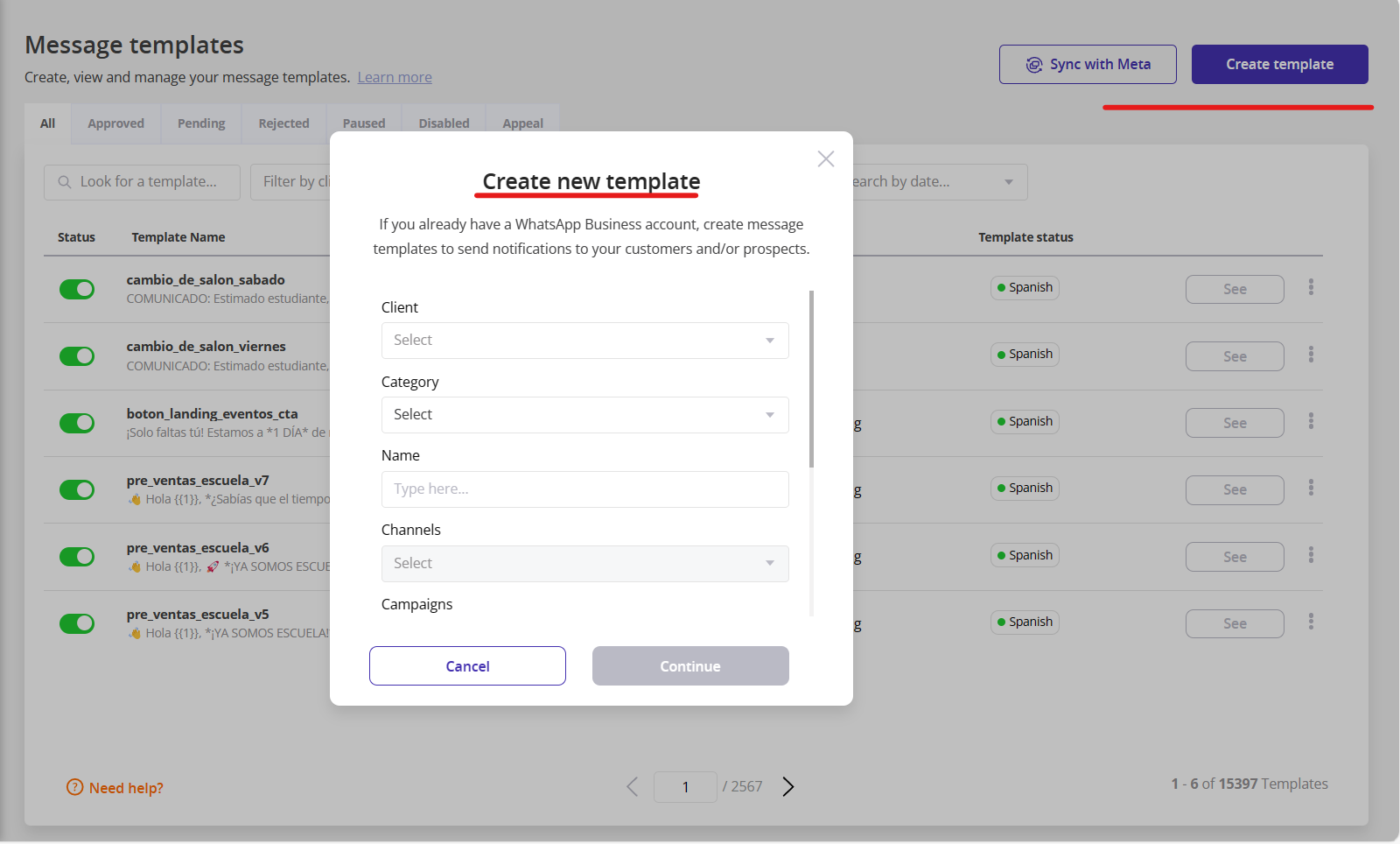
- Select a category for your template, whether it's utility or marketing.
- Assign a name to your template; remember that each template must have a unique name.
- Choose and assign campaigns and channels for your template.
- Activate the quick message box if you want the template to allow you to reactivate expired chats from the agent.
- Enable the category change permission if you want Meta to help you modify it to prevent the template from being rejected!
Important! If you want to create authentication templates, you must do it from our support and configuration center. These templates have a new structure and are used as one-time passwords.
How to configure the content of my template?
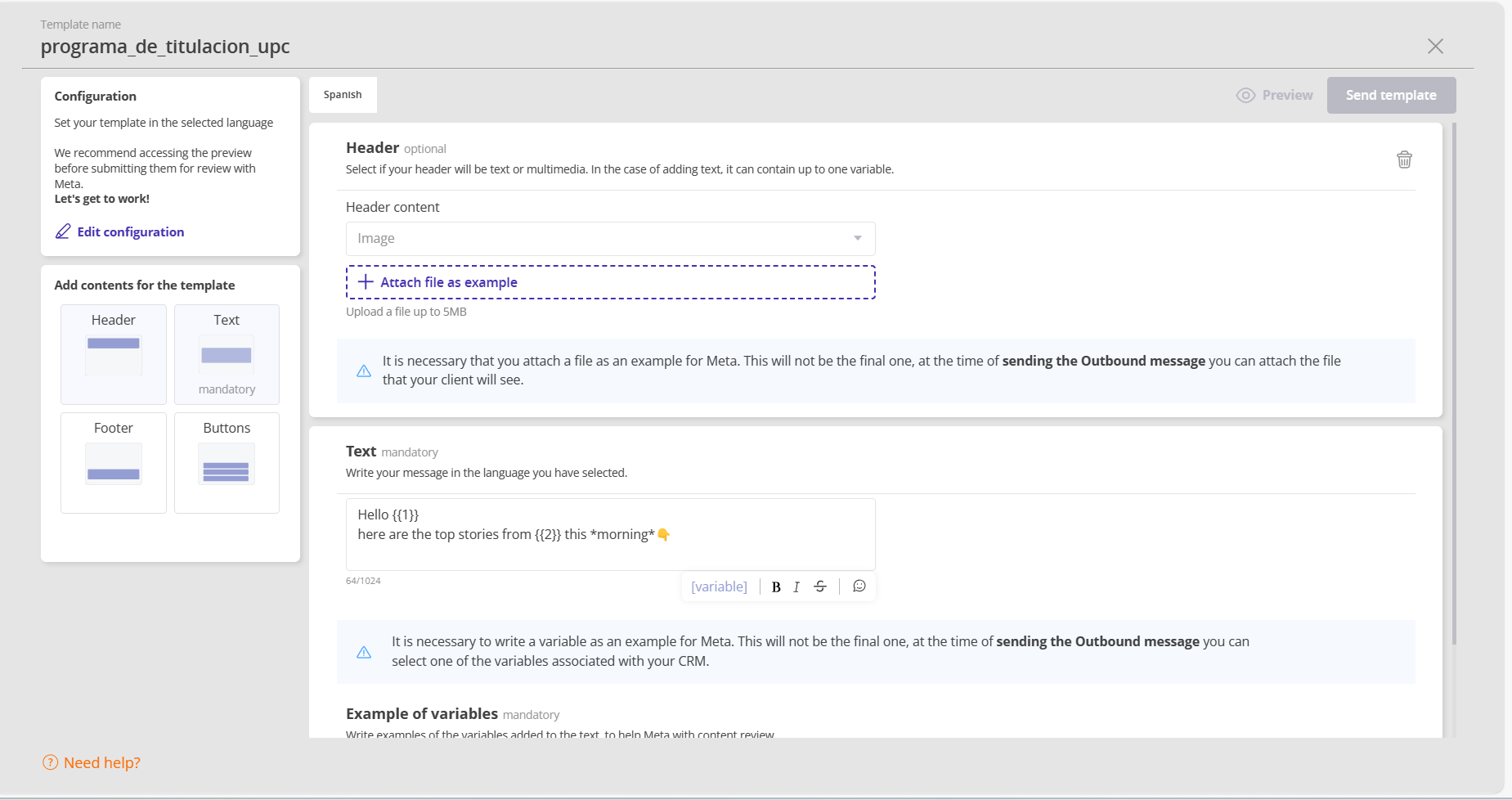
In the left panel, review and edit the established settings. Additionally, you can add content to your templates.
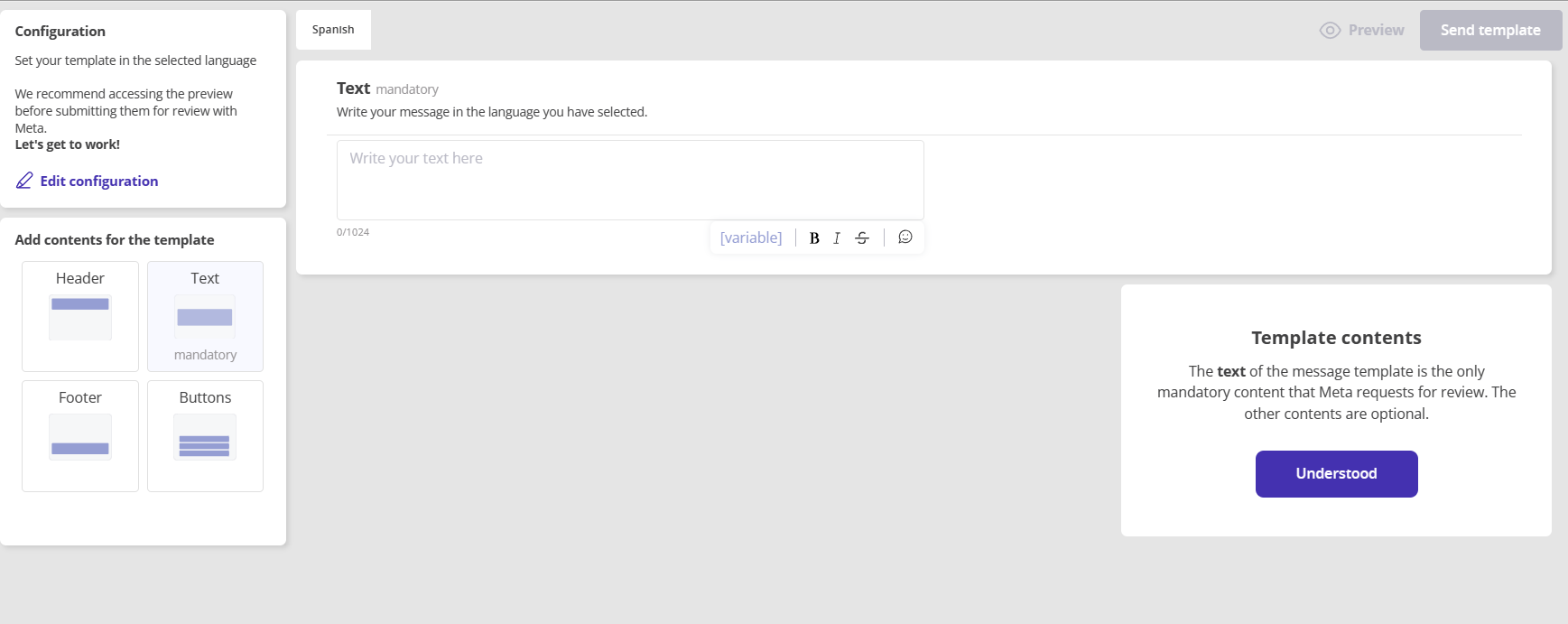
- Write the text for your template. If it's a quick message type, make the message catchy and appealing so that the customer resumes the conversation.
- Use emojis and bold phrases or words.
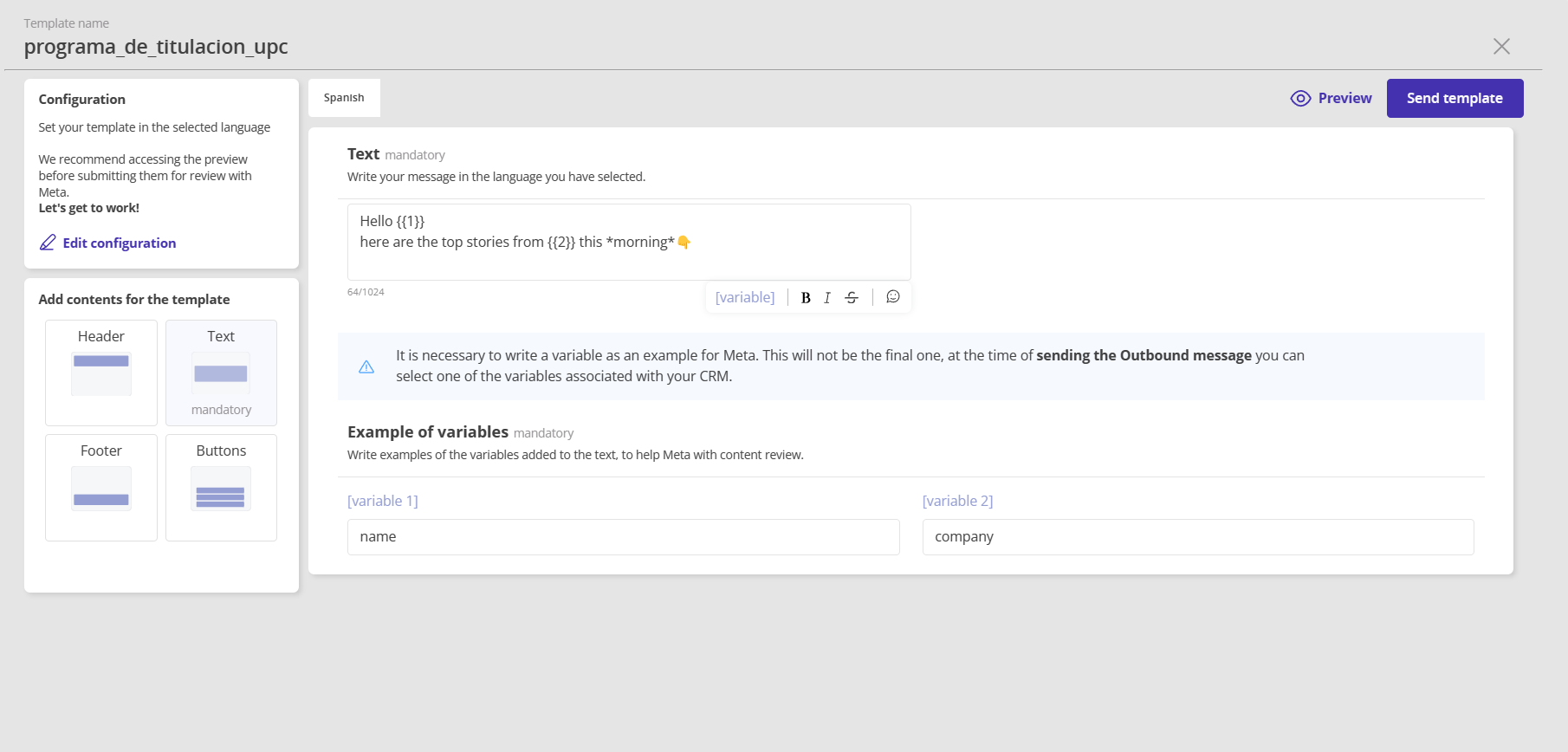
- The text content is the only mandatory element when creating a template.
- If you add variables to your template, you need to provide a sample.
- You can include up to 9 variables.
Header
- You can add text to head your templates. This content is optional.
- In the 'header content' option, you can choose: text, image, video, or document.
- Just like with the variables, you must upload a sample so that Meta can evaluate the template and approve it.
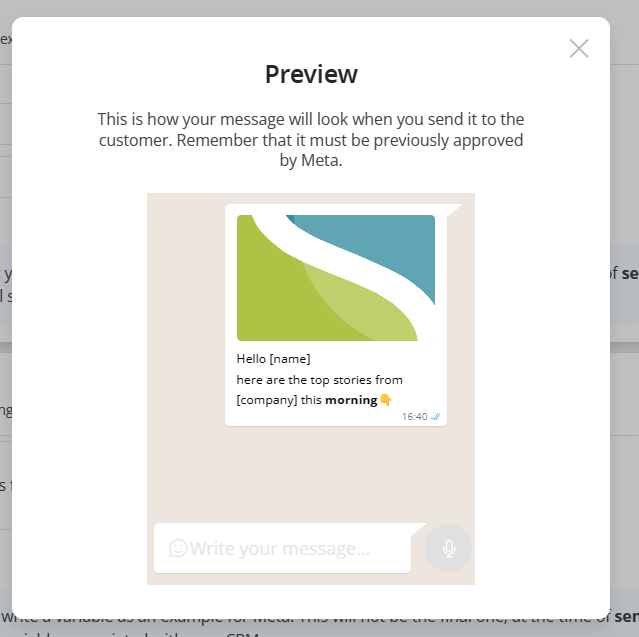
- You can preview your multimedia content to ensure it was uploaded correctly.
Footer
- You can add text up to 60 characters as a footer to your templates.
- This content is optional and does not have variables. Use multimedia content and the footer to make your template more appealing and attractive to users.
Remember:
- Preview your template before sending it.
- Submit your template for approval by Meta.
Monitoring approval status:
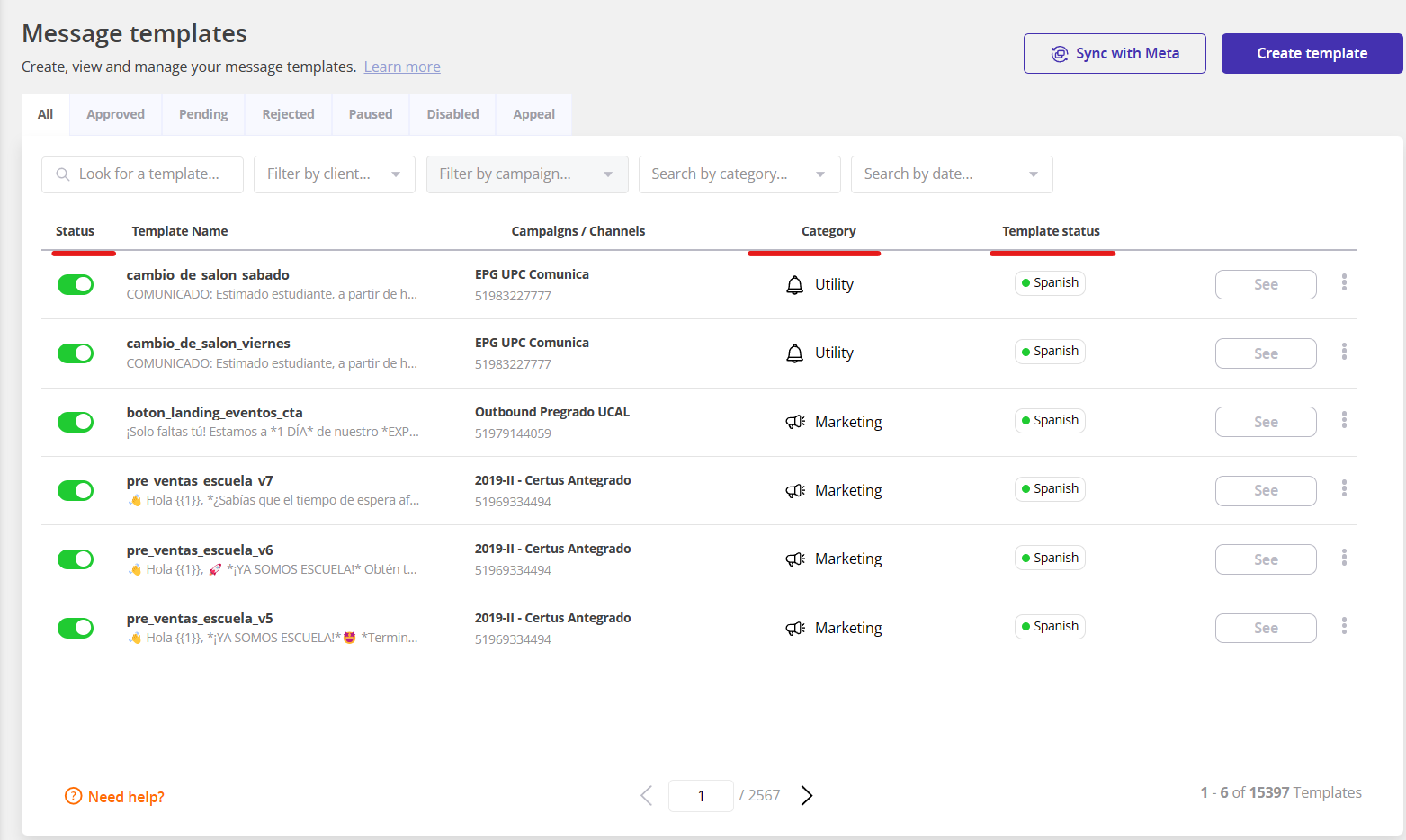
- Templates requesting approval will appear in the templates table as pending review.
- Wait a few minutes for Meta to review your template and check if it has been approved.
- Once the template is approved, you can activate it from the templates module."
What happens if my template is rejected?
- I request support from our help and settings center with the details of the template name and reason for rejection.
- Soon you will be able to edit and appeal when a template is rejected.